Linux ls Command: Complete Guide With Examples, Options & Tips
August 25, 2026 · 10 min read
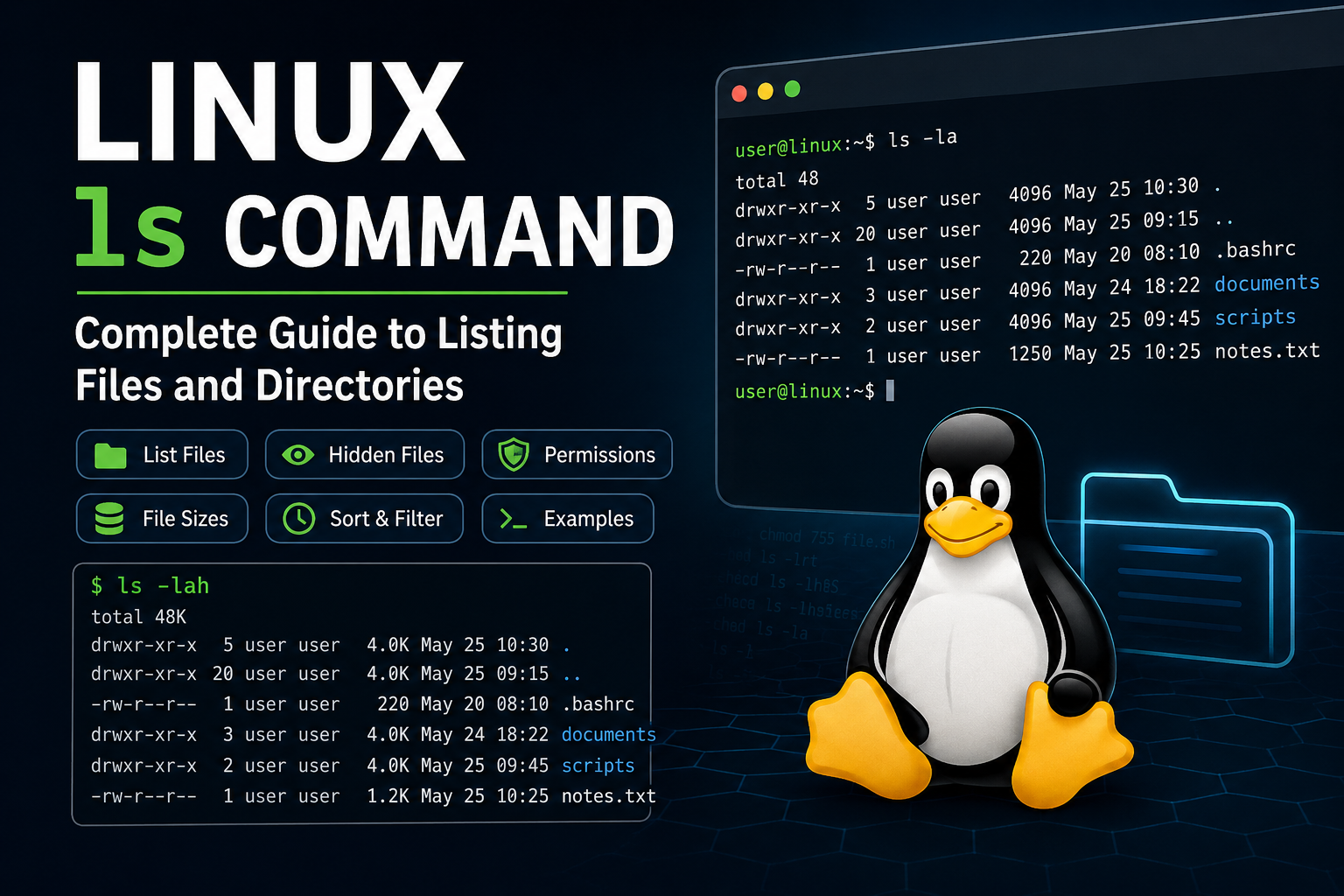
Linux ls Command: A Complete Guide to Listing Files and Directories
If you have ever worked with Linux, you have probably used the ls command—even if you are just getting started.
The ls command is one of the first Linux commands people learn because it helps you see what is inside a directory. But ls is much more powerful than simply showing filenames. With a few useful options, you can view hidden files, check permissions, see file sizes, sort files, identify recently modified files, and even make directory navigation much easier.
In this guide, we will understand the Linux ls command, its most useful options, and some practical examples that you can actually use while working on a Linux server.
What Is the ls Command in Linux?
The ls command is used to list files and directories in Linux and other Unix-like operating systems.
By default, when you run:
ls
Linux displays the files and directories present in your current working directory.
For example:
$ ls

backup  documents  index.html  scripts  test.txt
It is basically like asking Linux:
"What is inside this directory?"
The command looks simple, but it becomes very useful when combined with different options.
Basic Syntax of the ls Command
The basic syntax is:
ls [options] [file_or_directory]
For example:
ls
or:
ls /var/log
The second command displays the contents of the /var/log directory.
You can also specify multiple directories:
ls /etc /var/log
1. List Files in the Current Directory
The simplest way to use ls is:
ls
This shows the visible files and directories in your current location.
To check where you currently are, you can use:
pwd
Then:
ls
This combination is extremely common when working on Linux servers.
2. List Files With Detailed Information Using ls -l
One of the most commonly used options is -l.
ls -l
This displays files in a long listing format.
Example:
-rw-r--r-- 1 admin admin  1250 Aug 25 15:20 test.txt
drwxr-xr-x 2 admin admin  4096 Aug 25 15:22 scripts
At first glance, this output may look confusing, but each part contains useful information.
For example:
-rw-r--r-- 1 admin admin 1250 Aug 25 15:20 test.txt
It contains:
- File type and permissions
- Number of hard links
- File owner
- Group owner
- File size
- Last modification date and time
- File or directory name
This is particularly useful for Linux administrators when troubleshooting permissions or checking ownership.
3. Show Hidden Files With ls -a
Linux hides files whose names start with a dot (.).
For example:
.bashrc
.profile
.config
These files will not normally appear when you run:
ls
To display hidden files, use:
ls -a
Example:
. .. .bashrc .config documents test.txt
Here:
.represents the current directory...represents the parent directory.
This option is especially useful when troubleshooting configuration files.
For example, if you are looking for your Bash configuration:
ls -la ~
4. Combine Options: ls -la
Linux allows you to combine multiple options.
Instead of:
ls -l -a
you can write:
ls -la
This gives you:
- Detailed file information
- Hidden files
- File permissions
- Ownership
- File sizes
- Modification dates
You will probably use ls -la frequently when working with Linux servers.
5. Display File Sizes in a Human-Readable Format
If you run:
ls -l
file sizes are normally displayed in bytes.
For example:
-rw-r--r-- 1 admin admin 10485760 Aug 25 15:20 backup.tar
That is not particularly easy to read.
You can use the -h option:
ls -lh
Now the size may look like:
-rw-r--r-- 1 admin admin 10M Aug 25 15:20 backup.tar
The -h option means human-readable.
Common examples include:
1K
10M
2G
500M
For everyday Linux administration, this is much easier to understand.
6. Check Hidden Files With Human-Readable Sizes
You can combine all three options:
ls -lah
This is one of my most useful combinations when checking a directory.
It shows:
- Hidden files
- Detailed information
- Human-readable file sizes
For example:
drwxr-xr-x  5 admin admin 4.0K Aug 25 15:00 .
drwxr-xr-x 20 admin admin 4.0K Aug 25 14:30 ..
-rw-------  1 admin admin  15K Aug 25 15:10 .bash_history
-rw-r--r--  1 admin admin  220 Aug 25 14:30 .bashrc
-rw-r--r--  1 admin admin  10M Aug 25 15:20 backup.tar
7. List Files in a Specific Directory
You don't have to change directories before using ls.
For example:
ls /var/log
This directly displays the contents of /var/log.
You can also use:
ls -lah /var/log
This is useful when you want to quickly inspect a directory without changing your current location.
8. List Directories Only
Sometimes you don't want to see every file. You only want to see directories.
You can use:
ls -d */
Example:
backup/
documents/
scripts/
projects/
This can be useful when navigating large directory structures.
9. Sort Files by Modification Time
When troubleshooting a server, you often want to know:
"Which file was modified most recently?"
The -t option sorts files by modification time.
ls -lt
The newest files appear first.
For example:
-rw-r--r-- 1 admin admin 2K Aug 25 17:10 application.log
-rw-r--r-- 1 admin admin 5K Aug 25 16:45 nginx.log
-rw-r--r-- 1 admin admin 8K Aug 25 14:20 backup.log
This can be extremely useful when investigating configuration changes or application issues.
10. Show the Oldest Files First
You can reverse the sorting order using -r.
ls -ltr
Here:
-tsorts by modification time.-rreverses the order.
So the oldest files appear first and the newest files appear last.
A common command used by Linux administrators is:
ls -ltr
Especially when checking log directories.
11. Sort Files by Size
You can sort files based on their size using:
ls -lS
The largest files appear first.
For a human-readable output:
ls -lhS
This can be helpful when you are trying to quickly identify large files.
For example:
-rw-r--r-- 1 admin admin 5.2G Aug 25 10:00 backup.tar
-rw-r--r-- 1 admin admin 1.8G Aug 24 10:00 database.sql
-rw-r--r-- 1 admin admin 500M Aug 23 10:00 application.log
12. List Files Recursively With ls -R
The -R option recursively lists the contents of directories.
ls -R
For example:
project:
app
config
static

project/app:
models.py
views.py

project/config:
settings.py

project/static:
css
js
Be careful with this option on large directories because the output can become extremely long.
13. Display Inode Numbers
Linux files have an inode associated with them.
You can display inode numbers using:
ls -i
Example:
1234567 test.txt
1234568 backup.tar
With detailed information:
ls -li
This can be useful when investigating hard links or certain filesystem-related issues.
14. List Files With Their Full Path
The ls command itself does not normally print full paths for files in the current directory.
However, you can combine it with other commands depending on what you are trying to accomplish.
For example:
ls -l /var/log
shows the directory you specified, while tools such as find are generally better when you specifically need full file paths.
For example:
find /var/log -maxdepth 1 -type f
This is an important distinction: ls is primarily for viewing directory contents, while find is designed for searching files and directories.
15. Show File Types With ls -F
The -F option adds symbols to filenames to indicate their type.
ls -F
You may see:
documents/
script.sh*
link@
Common symbols include:
/→ directory*→ executable file@→ symbolic link
This makes it easier to understand what you are looking at.
16. Use ls -l to Check Permissions
One of the biggest reasons Linux administrators use ls -l is to check file permissions.
For example:
-rwxr-xr-- 1 admin developers 2048 Aug 25 12:30 deploy.sh
The first section:
-rwxr-xr--
represents the file type and permissions.
It tells you what the:
- Owner
- Group
- Others
are allowed to do.
If you are troubleshooting a permission denied error, checking:
ls -l filename
is often one of the first things you should do.
17. Check Symbolic Links
Symbolic links are common in Linux.
Run:
ls -l
You may see:
lrwxrwxrwx 1 admin admin 20 Aug 25 15:00 current -> /opt/application/v2
The -> tells you where the symbolic link points.
You can also use:
ls -la
when you want to include hidden symbolic links.
18. Useful ls Command Combinations
Once you understand the individual options, you can combine them.
Here are some practical combinations:
Detailed listing
ls -l
Show hidden files
ls -a
Detailed listing with hidden files
ls -la
Human-readable sizes
ls -lh
Hidden files + details + readable sizes
ls -lah
Sort by modification time
ls -lt
Sort by modification time, oldest first
ls -ltr
Sort by file size
ls -lS
Human-readable size sorted by size
ls -lhS
Recursive listing
ls -R
Show inode numbers
ls -li
Common ls Options Cheat Sheet
| Option | Purpose |
|---|---|
-a | Show hidden files |
-l | Long/detailed listing |
-h | Human-readable file sizes |
-t | Sort by modification time |
-r | Reverse sorting order |
-S | Sort by file size |
-R | List directories recursively |
-i | Show inode numbers |
-d | List directory itself instead of its contents |
-F | Add file-type indicators |
Real-World Linux Administration Examples
The ls command becomes much more useful when you use it for actual troubleshooting.
Check Recently Modified Files
ls -lt /var/log
Useful when investigating a recent incident.
Find Large Files Quickly
ls -lhS /var/log
This can help you identify unusually large files.
Check Configuration Files
ls -lah /etc/myapp/
This shows hidden files, permissions, ownership, and sizes.
Check Application Deployment
ls -lah /opt/myapp/
You can quickly verify whether expected files and directories exist.
Check File Ownership
ls -l /path/to/file
This is particularly useful when an application cannot read or write a file.
ls vs find: What's the Difference?
Beginners sometimes try to use ls for everything.
That's not always the best approach.
ls is mainly used to list and inspect directory contents.
find is better when you need to search for files based on conditions.
For example:
ls -lh /var/log
shows the contents of /var/log.
But:
find /var/log -type f -name "*.log"
searches for files ending in .log.
So a simple rule is:
Use ls to see what is in a directory. Use find when you need to search for something.
Tips for Using ls Like a Linux Administrator
If you're working with Linux regularly, you don't need to memorize every option.
Start with these:
ls
ls -l
ls -la
ls -lah
ls -ltr
ls -lhS
These six commands will cover a large percentage of everyday file-listing tasks.
Also, remember that Linux commands can usually be combined. Once you understand what each option does, you can build your own commands based on what you need.
For example:
ls -lahtr
looks intimidating at first, but it is simply a combination of:
-l→ detailed listing-a→ hidden files-h→ human-readable sizes-t→ sort by modification time-r→ reverse the order
Conclusion
The Linux ls command may look like a very basic command, but it is one of the most useful tools for everyday Linux administration.
Whether you are checking file permissions, investigating logs, looking for recently modified files, checking disk usage, or simply navigating a server, knowing how to use ls effectively can save you a lot of time.
If you are learning Linux, don't try to memorize every option at once. Start with ls, ls -l, ls -la, and ls -lah, and gradually add options such as -t, -S, and `-R as you need them.
Once these commands become second nature, you'll find yourself using them almost every time you work on a Linux server.
Frequently Asked Questions About the Linux ls Command
What is the ls command used for in Linux?
The ls command is used to list files and directories in a Linux filesystem. It can also display information such as permissions, ownership, file size, and modification time.
How do I show hidden files in Linux?
Use:
ls -a
For detailed information and hidden files, use:
ls -la
How do I see file sizes in a readable format?
Use the -h option with a long listing:
ls -lh
How do I list the newest files first?
Use:
ls -lt
How do I sort files by size?
Use:
ls -lhS
This displays files in descending order of size with human-readable units.
What does ls -la mean?
ls -la combines -l and -a. It displays a detailed listing and includes hidden files.